Light Options Menu
Light Options Menu


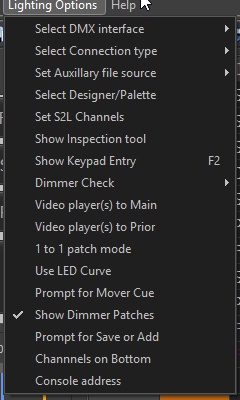
The DMX hardware interface can be chosen. Changing it will dictate a restart of the program. The devices listed are the most popular brands and are recommended, but other units labeled "Enttec compatible" should work, with the exception of novice 'open' units.
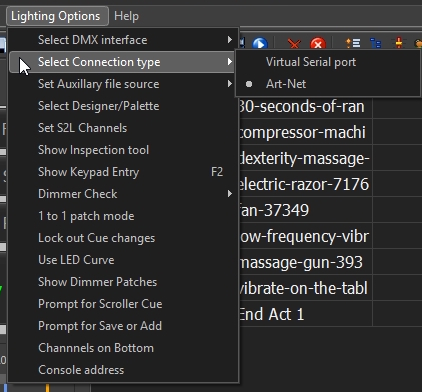
The DMX connection type can be via a virtual serial port or by Art-Net. The FTDI website will have any updates to the driver from the one distributed with CP One. The latest DMX King models use the serial port. The D2XX interface from earlier versions has been depreciated by Windows in favor of the virtual port.
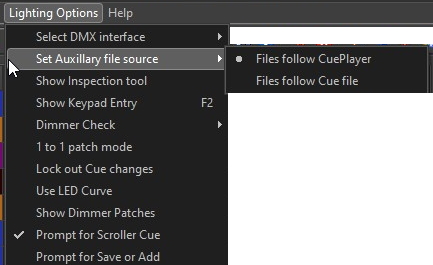
The source of the soft patch file, fixture map file, Submasters, Scenes, and Groups can be set to be either common to CP One or to the current cue file. If you are in a fixed location, "follow CuePlayer" makes sense, if using a laptop at multiple venues then "follow Cue file" may work better for you. When you create a new cue file, you may choose existing files to be copied as a start.
Different lighting designers may have different color palettes for LED fixtures than the default settings. You may define a designer and his/her palette.
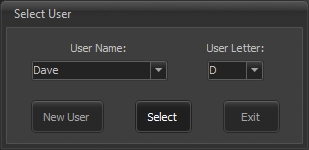
The User name and letter are used by the color picker tool to identify LED colors. For example, having saved a color via the picker as D2, it becomes a gel color that can be used to recall that color.
There is a tool available indirectly from ETC that translates sound frequencies and levels into ETC console commands. This menu item will open a screen to set up what CP One lighting channels respond to the tool's output messages:
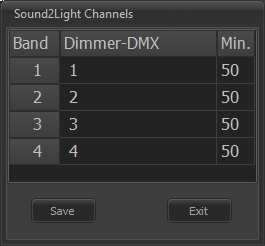
S2L will send an OSC channel and level message. A minimum level can be set if going completely out when S2L does not send a level is desired. The channel can be either a conventional intensity or a color channel of an LED instrument depending on the patching.
Show Inspection tool opens a viewing window and activates a logging function so you can see all the commands being sent to the DMX interface. It was used mostly during development of the program, but may prove useful. It is used to select the Art-Net IP address and allows 'under the hood' settings for LED fixtures. The tool has its own Help page.
Keypad entry of channel levels is enabled by showing the keypad entry window, either by clicking the menu or pressing the F2 key.
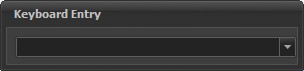
This window can be positioned anywhere and it's last position is remembered. The syntax for entry is: "channels*level". A range of channels is written "start/end". For example, "2/10-5+12*80" would set channels 2,3,4,6,7,8,9,10,12 at 80. Pressing the - key on the numpad will give this window focus at any time it's open.
The Dimmer check goes channel by channel and runs the values up and down so you can check the lights before a show. You can select automatic advance or manual. Press Esc to exit the check at any time.
Video to Main moves any open video players to the main screen to enable removement or option selection.
Video to Prior moves any open video players on the main screen to their prior size and postion as saved at program close.
1 to 1 patch mode bypasses the softpatch file and maps channel 1 to dimmer 1, 2 to 2, etc.
Using the LED curve text file - led.txt - will substitute the file entries for the normal linear dimming values. The supplied file may give you better dimming on less expensive fixtures. It can be edited with any text editor.
Prompt for Mover cue will ask, whenever a channel of a moving light is changed, if a prior cue should be inserted with the pan and tilt values. This allows for settting the position before bringing up the intensity.
Since the fixture window has a tool to allow mouse movement to change the pan and tilt of a moving light, it is necessary to set the range of motion, or calibrate, that fixture. (See the "Moving lights" chapter) A prompt window will pop up if the values entered are out of the calibration range.
Showing the dimmer patches applies to the softpatch screen and whether when a channel is clicked the corresponding patches for it are shown.
Whenever a channel value is changed, an optional prompt can ask if the change should be added as an additional cue, or it is just a change to that cue.
The array of light channels can be positioned either on the right side of the cue list or underneath the cue list. There is a splitter bar between the controls and the array that can adjust the ratio of the two elements.
The light cue type chapter has a description of the details of console communication.