Video
Video Cues


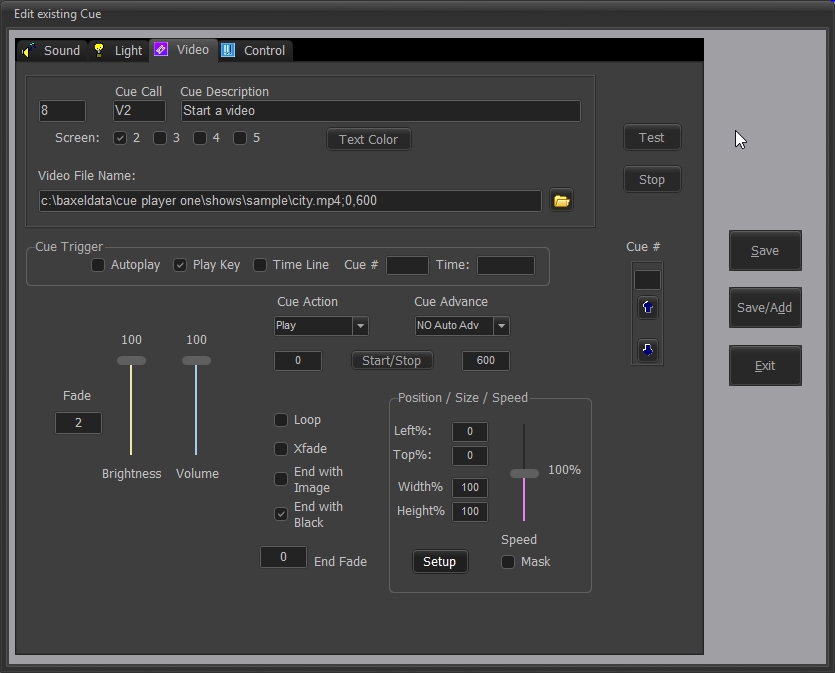
Selecting the Video tab after + on the home screen will display the above screen. The Save, Save/Add, and Exit buttons are common to all of the 4 tabs. Save will either add a new cue to the list or store any changes to an existing cue. Save/Add does the same, but returns to this screen instead of the main window. Exit returns to the main window.

These are the first 3 columns of the cue list. That being the cue sequence number, the stage manager cue call, and the cue description. As with all cues, the color of the cue description in the list can be set. Up to 4 video players can be connected. The Screen selection sends this cue to the desired player. Whether that player is local or remote depends on that number and the number of local videos you entered in Preferences. More than one player or any combination can be selected.
 This is the file name and location of the picture or video to be played. The button will bring up a file browser. Video files can be a format of .mpg, .avi, .divx, .wmv, .mov, .mp4, .mpv, .mkv, .m4v, .mpeg, .vob, .jpg, .jpeg, .jfif, .bmp, .tif .gif, .png.

The trigger for playing or running the cue can be either when the cue is selected, the Play key, as set from the Options menu, the time position of an already running cue, or a time of day. The number of a playing cue goes into the Cue # field and the time position, in tenths of a second, goes into Time field. If the Cue # is 0 and the Time is entered as hh:mm, the cue will play at that time. Hours greater than 12 are afternoon and evening, under 12 for morning. For the cue you are editing to be triggered this way in use, it must be the current selected cue in the cue list.
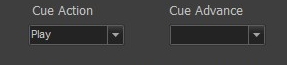 Cue Action is one of: Play, Pause, Resume, Fade Out, Stop, or Fade to Pause. Play requires a video file name, the others need the cue number of the affected cue. Cue Advance is one of: NO Auto Advance, Adv at End, Adv at Start, or Adv at Load.
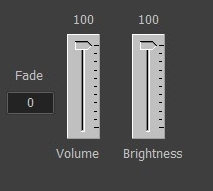 When played, the video or picture will fade in to the levels set in the sliders over the time, in seconds, in the Fade field.
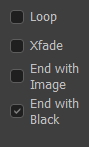 A video may be looped from end to start. Or it may crossfade in from the previous video or picture. The previous will be faded out over the same time as the fade in. At the end of a video, the image can go to black or be held at the last frame.
Start/Stop will also appear for Video cues:
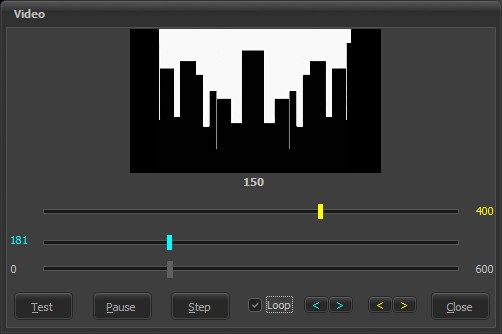
The cyan and yellow markers again define the start and stop positions. The bottom slider will change the display to the time in the movie indicated under the picture. Please note that start times of a video, especially a compressed one (e.g. .mp4), can vary from the selected cyan position due to the need to be at a "key frame". Without going to deeply, computer videos are stored with key frames holding the entire image and subsequent frames holding the differences from that key frame to the next. To start to play a video, it must be from a key frame.
A video cue, both picture and movie will have this box at the bottom:
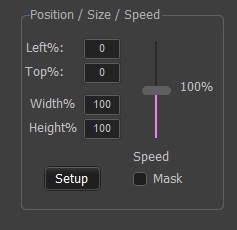
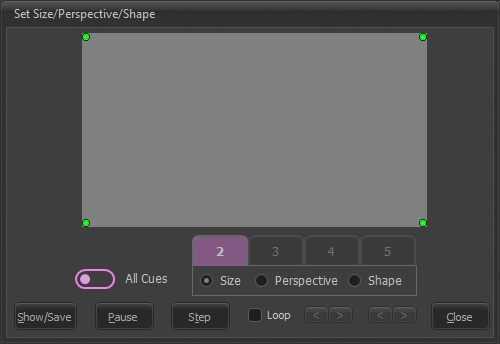
This let's you set the size and position of the cue on the projector screen. The Setup button will bring up this window where the corners of the image can be set graphically. You can still enter the percentages directly if you wish, but what you drag the green dots to here will be transferred as values to the percentages. The tabs will be enabled as per the screen selection of the cue's projectors.
Perspective can also be set by cue:
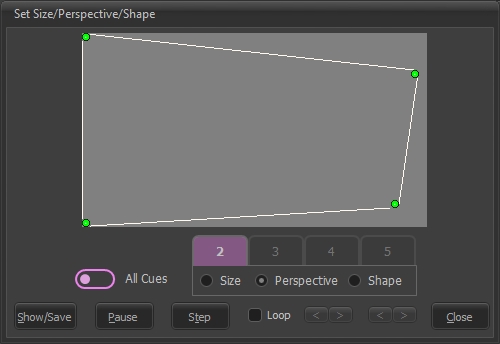
This would most often be used to adjust for a projector position causing keystoning or something special cue to cue.
The cue shape can also be selected:
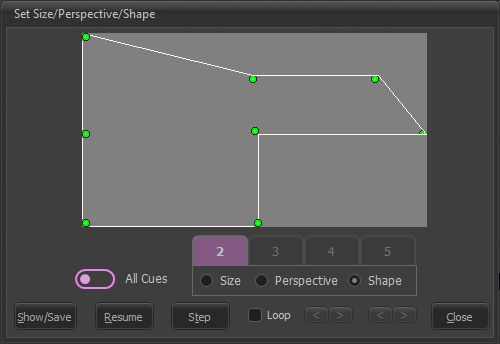
These settings can be for an indivdual cue or globally for all cues. A right click will allow a choice of which setting to reset the dots to the edges and corners.
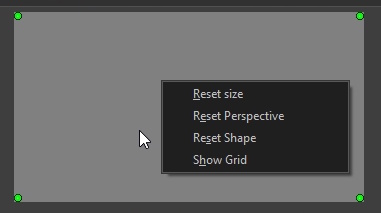
A Show Grid click will show this:
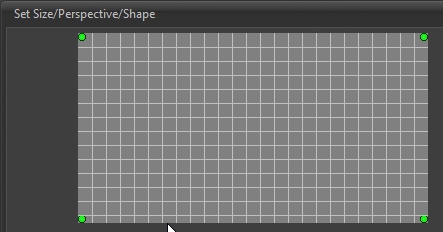
to make it easier to accuratly place the dots.
The Show/Save button will transfer the new settings to the projector image so you can see the effect.
If Mask is unchecked then the size will be within the green dots. If masked, then the image will fill the screen, but only the green dot rectangle will show.
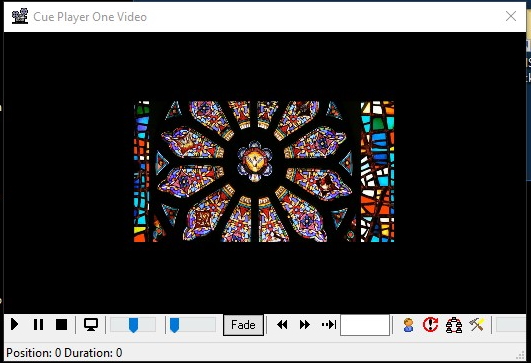
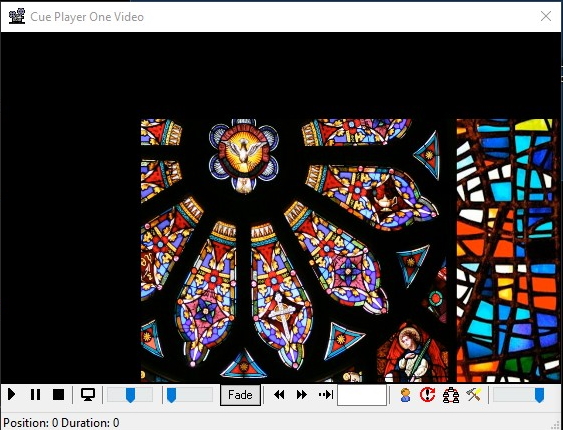
Like Tempo for sound, Speed will will adjust the playback speed plus or minus 100%. Expect some jerkiness in playback once you get down below 10%.
You may want a movie to end with the last frame displayed instead of fading to black. The 'Ends in ...' buttons control that. A movie cue that ends in image would normally have a Fade cue following it to fade to black when you want it.
 The up and down arrows are used to move the cue being edited up or down in the cue list. A number can be entered directly and the current cue will move to that line.
At program shutdown the current positions and sizes of the screens can be saved.
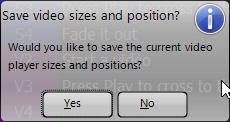
These are saved by cue file name and can be recalled depending on what is loaded. Cleanup of old cue files is done via the video player Settings tool.